
Along with geometric shapes and images, canvas allows you to display text. Part of this is to first set the canvas context’s font property:
var canvas = document.getElementById("myCanvas"),
context = canvas.getContext("2d");
context.font = "22px Verdana";
The property fontaccepts a font definition as a value. In this case, the Verdana font is 22 pixels high. Standard fonts are used as fonts.
Next, we can output some text using the fillText() method :
<!DOCTYPE html>
<html lang="en">

<head>
    <meta charset="UTF-8">
    <meta http-equiv="X-UA-Compatible" content="IE=edge">
    <meta name="viewport" content="width=device-width, initial-scale=1.0">
    <title>Canvas in HTML5</title>
</head>

<body>
    <canvas id="myCanvas" width="300" height="200" style="background-color:#eee; border:1px solid #ccc;">
        Your browser does not support Canvas
    </canvas>
</body>

</html>
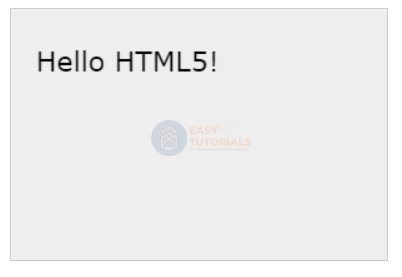
The method fillText(text, x, y)takes three parameters: the text to be displayed and the x and y coordinates of the point from which the text is displayed.
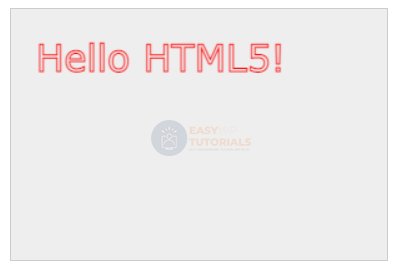
To draw text, you can also use the strokeText() method , which creates a border for the characters to be drawn:
var canvas = document.getElementById("myCanvas"),
context = canvas.getContext("2d");
context.font = "30px Verdana";
context.strokeStyle = "red";
context.strokeText("Hello HTML5!", 20, 50);
TextAlign property
The textAlign property allows you to align text with respect to one of the sides. This property can take the following values:
- left: text starts at specified position
- right: text ends at specified position
- center: text is centered relative to the specified position
- start: default value, text starts at specified position
- end: text ends at specified position
var canvas = document.getElementById("myCanvas"),
context = canvas.getContext("2d");
context.font = "22px Verdana";
context.textAlign = "right";
context.fillText("Right Text", 120, 30);
context.textAlign = "left";
context.fillText("Left Text", 120, 60);
context.textAlign = "center";
context.fillText("Center Text", 120, 90);
context.textAlign = "start";
context.fillText("Start Text", 120, 120);
context.textAlign = "end";
context.fillText("End Text", 120, 150);

lineWidth property
The lineWidth property sets the width of the text line:
var canvas = document.getElementById("myCanvas"),
context = canvas.getContext("2d");
context.font = "30px Verdana";
context.strokeStyle = "red";

context.lineWidth = 2;
context.strokeText("Hello HTML5!", 20, 50);

textBaseline property
The textBaseline property sets the text alignment to the baseline. It can take the following values:
- top
- middle
- bottom
- alphabetic
- hanging
- ideographic
var canvas = document.getElementById("myCanvas"),
context = canvas.getContext("2d");
context.font = "18px Verdana";
context.textBaseline="top";
context.fillText("Top",15,100);
context.textBaseline="bottom";
context.fillText("Bottom",60,100);
context.textBaseline="middle";
context.fillText("Middle",130,100);
context.textBaseline="alphabetic";
context.fillText("Alphabetic",200,100);
context.textBaseline="hanging";
context.fillText("Hanging",300,100);

Defining Text Width
Using the measureText() method, you can determine the width of the text on the canvas:
var canvas = document.getElementById("myCanvas"),
context = canvas.getContext("2d");
context.font = "18px Verdana";
var text = context.measureText("Hello HTML5");
alert(text.width);