In addition to the property float that allows you to change the position of an element, CSS has another important property – display . It allows you to control the block of an element and also influence its positioning relative to neighboring elements.
This property can take the following values:
- inline: the element becomes inline, like words in a line of text
- block: the element becomes block like a paragraph
- inline-block: the element is positioned as a line of text
- list-item: the element is positioned as a list element, usually with the addition of a marker in the form of a dot or a serial number
- run-in: element block type depends on surrounding elements
- flex: allows for flexible positioning of elements
- table, inline-table: allows you to arrange elements in a table
- none: element not visible and removed from html markup
So, the block value allows you to define a block element. Such an element is visually separated from neighboring elements by a line break, such as a p paragraph element or a div element, which are block elements by default and visually wrap to a new line when the web page is rendered.
However, the element span, unlike the div element, is not a block element. Therefore, let’s see what changes will happen to it when the value is applied block:
<!DOCTYPE html>
<html lang="en">

<head>
    <meta charset="UTF-8">
    <meta http-equiv="X-UA-Compatible" content="IE=edge">
    <meta name="viewport" content="width=device-width, initial-scale=1.0">
    <link href="css/styles.css" rel="stylesheet">
    <title>Display Property in CSS3</title>
</head>

<body>
    <div>This is a <span>inline</span> span element</div>
    <div>This <span class="blockSpan">block</span> span element </div>
</body>

</html>

There are two span elements defined here, but one of them is a block element because the style is applied to it display: block;. Therefore, this span element wraps to a new line.
Unlike block elements, inline elements are inline because they have a property display value of inline . The span element has the style by default display: inline, which is why it is embedded in a line, and not carried over to the next one, like paragraphs or divs. And now we will perform the reverse procedure – we will make the block element div inline:
<!DOCTYPE html>
<html lang="en">

<head>
    <meta charset="UTF-8">
    <meta http-equiv="X-UA-Compatible" content="IE=edge">
    <meta name="viewport" content="width=device-width, initial-scale=1.0">
    <title>Display Property in CSS3</title>
</head>

<body>
    <div>First inline element div.</div>
    <div>Second inline element div.</div>
</body>

</html>

Note that when applying a value, inline the browser ignores some properties such as width, height, margin.
inline-block
Another value, inline-block , represents an element that has a mixture of block and inline attributes. In relation to neighboring external elements, such an element is regarded as inline. That is, it is not separated from neighboring elements by a line break. However, with respect to nested elements, it is treated as a block element. width And the properties , height, are applied to such an element margin.
<!DOCTYPE html>
<html lang="en">

<head>
    <meta charset="UTF-8">
    <meta http-equiv="X-UA-Compatible" content="IE=edge">
    <meta name="viewport" content="width=device-width, initial-scale=1.0">
    <title>Display Property in CSS3</title>
</head>

<body>
    <p>After half a verst at the tail of the <span>column</span>, he stopped </p>
    <p>After half a verst at the tail of the <span class="inineBlockSpan">column</span>, he stopped </p>
</body>

</html>

The first span element is inline and has a value of inline, so it makes no sense to apply the and properties to width it height. But the second element span has a value of inline-block, so both width and height are applied to it, and you can also set padding if necessary.
run-in
The run-in value defines an element that depends on neighboring elements. And there are three possible options here:
The element is surrounded by block elements, then in fact it has a style display: block, that is, it becomes block itself
The element is surrounded by inline elements, then in fact it has a style display: inline, i.e. it becomes inline itself
In all other cases, the element is considered a block element.
Table view
The table value essentially turns the element into a table. Let’s look at an example list:
<!DOCTYPE html>
<html lang="en">

<head>
    <meta charset="UTF-8">
    <meta http-equiv="X-UA-Compatible" content="IE=edge">
    <meta name="viewport" content="width=device-width, initial-scale=1.0">
    <title>Display Property in CSS3</title>
</head>

<body>
    <ul>
        <li>Item 1</li>
        <li>Item 2</li>
        <li>Item 3</li>
    </ul>
</body>

</html>
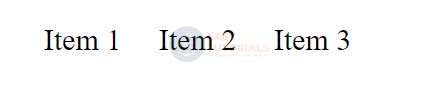
Here the list turns into a table, and each element of the list into a separate cell. To do this, the list element is styled display: table-cell. In fact, instead of this list, we could use a standard table.
Hiding an element
The none value allows you to hide an element that doesn’t appear to be on the web page:
<!DOCTYPE html>
<html lang="en">

<head>
    <meta charset="UTF-8">
    <meta http-equiv="X-UA-Compatible" content="IE=edge">
    <meta name="viewport" content="width=device-width, initial-scale=1.0">
    <title>Display Property in CSS3</title>
</head>

<body>
    <p>First paragraph</p>
    <p class="invisible">Second paragraph</p>
    <p>Third paragraph</p>
</body>

</html>